
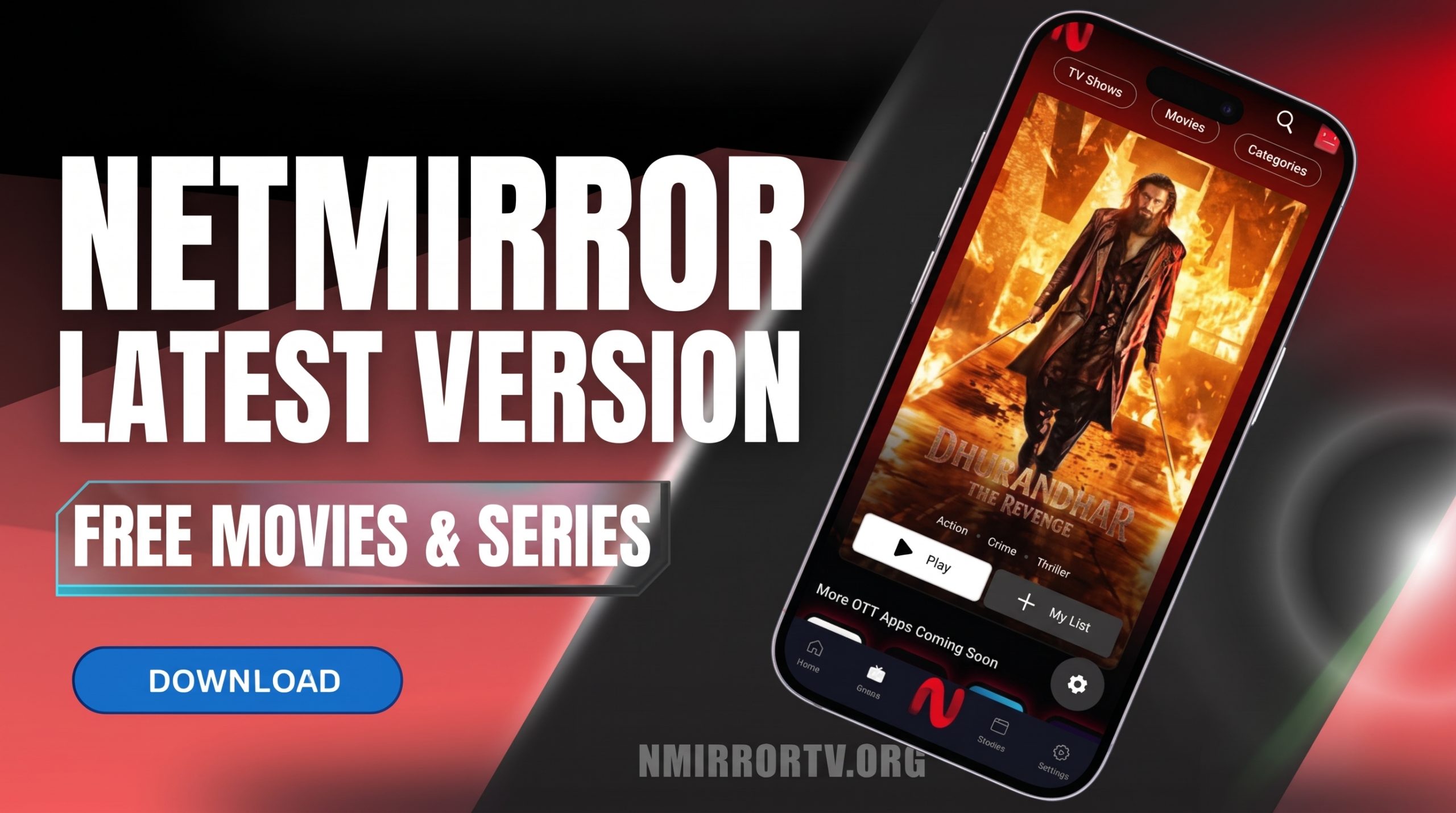
| App Name | NetMirror |
| Version | V6.0 |
| Size | 49 MB |
| Developer | NetMirror Team |
| Category | Entertainment |
| License | FREE (0$) |
| Requires | Android 5.0 or above |
| Updated On | 1 day ago |
NetMirror Latest Version
Entertainment applications make it easier for users to explore movies, television shows, and web series from their Android devices. Many people prefer applications with simple navigation, organized categories, and convenient streaming options. However, keeping an application updated is important for maintaining compatibility and avoiding common technical problems.
The NetMirror Latest Version is a popular search topic among users who want to learn about available updates, application features, installation methods, and device requirements. Before installing any new release, it is important to understand its compatibility and download it from a trustworthy source. In this guide, we will explain how to check an application version, explore its features, understand the update process, and troubleshoot common installation problems.
What Is NetMirror Latest Version?
NetMirror APK Alternatives is an entertainment application associated with browsing movies and television content. Users searching for its latest version generally want information about application updates, available features, and Android compatibility. An updated application may include bug fixes, interface improvements, security changes, and better compatibility with supported devices. However, the actual changes depend on the specific release. Before downloading an update, always check the version number, release information, developer details, and source of the installation file.
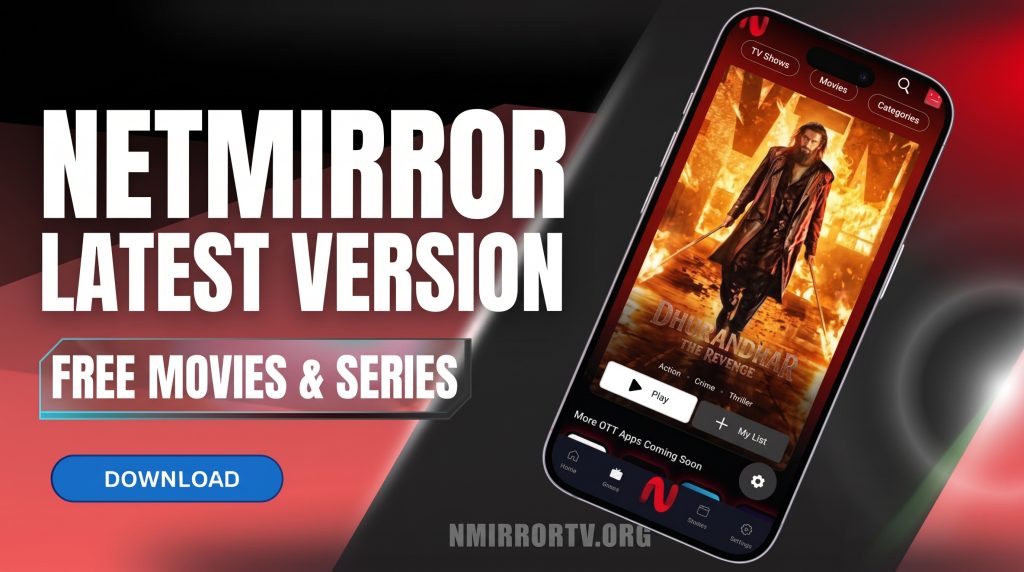
Main Features of NetMirror
An entertainment application can offer several useful functions that make browsing and content discovery easier. Here are some features users may look for when exploring NetMirror.
1. Simple User Interface
A straightforward interface helps users navigate different application sections without unnecessary confusion.
- Organized navigation options.
- Easy-to-understand menus.
- Convenient content browsing.
- Accessible application settings.
2. Entertainment Categories
Content categories can make it easier to discover different types of entertainment.
- Movie categories.
- Television show sections.
- Different entertainment genres.
- Organized content listings.
3. Search Function
A search feature helps users find specific titles without manually browsing every category.
- Search for available titles.
- Find content using keywords.
- Reduce browsing time.
- Access matching search results.
4. Video Playback Options
Video playback is an important part of any streaming application. Available playback options may depend on the application version and supported content.
- Convenient playback controls.
- Video quality options where supported.
- Playback navigation.
- Compatibility with supported formats.
5. Subtitle Support
Subtitles can make entertainment easier to understand, especially when watching content in another language.
- Subtitle options for supported videos.
- Language selection where available.
- Improved viewing accessibility.
- Better understanding of dialogue.
6. Android Compatibility
Android compatibility is important when installing an application on different smartphones and tablets.
- Support for compatible Android devices.
- Installation through supported methods.
- Device-dependent performance.
- Compatibility with available system versions.
What’s New in NetMirror Latest Version?
Users often search for the latest release because they want to understand whether an update offers improvements over an older version.
Depending on the release, application updates may include the following changes:
- Bug Fixes: Developers may address problems that affect normal application operation.
- Performance Improvements: Updates may improve responsiveness on supported devices.
- Interface Changes: Some releases may introduce adjustments to menus and navigation.
- Compatibility Updates: Newer versions may work better with supported Android operating systems.
- Playback Improvements: Certain updates may address video playback problems.
- Security Changes: Updates may include important security-related fixes.
Keep in mind that these are common types of application updates, not confirmed changes in a specific NetMirror release. Check the actual release notes before installing.
NetMirror Latest Version Download and Installation Guide
Installing an Android application requires attention to compatibility and download safety. Follow these steps to understand the general installation process.
Step 1: Check Your Android Device
Before installing the application, check your device information.
- Open your phone’s Settings.
- Navigate to About Phone.
- Find your Android version.
- Check the available storage.
- Review the application’s stated requirements.
This information helps you determine whether your device can support the installation.
Step 2: Find a Trustworthy Download Source
Always verify the source before downloading an APK file. Prefer an official developer website or a recognized application store when available.
Check the following details:
- Developer or publisher information.
- Application version number.
- Release date.
- File information.
- Requested permissions.
Avoid websites that display misleading download buttons or offer suspicious modified files.
Step 3: Download the Installation File
If a verified APK is available for your device, follow the source’s download instructions.
- Open the trusted download page.
- Locate the correct application version.
- Review the available information.
- Select the download option.
- Wait for the file to finish downloading.
Do not open files from unknown sources simply because their names match the application.
Step 4: Install the Application
Once you have verified the downloaded file, follow the supported Android installation instructions.
- Open your device’s Downloads folder.
- Locate the downloaded APK.
- Select the installation file.
- Review the installation information.
- Continue if Android confirms the file is safe.
- Wait for installation to complete.
If Android displays a security warning, do not ignore it. Verify the file before proceeding.
Step 5: Open and Check the Application
After installation, open the application and review its available sections.
Check whether the interface loads correctly, menus respond properly, and supported features work as expected.
How to Update NetMirror to the Latest Version
Keeping an application updated can help address certain bugs and compatibility issues. However, the update process depends on how the application is distributed.
Follow these general instructions:
- Check the currently installed version.
- Visit the application’s verified source.
- Compare the available release information.
- Confirm that the new version supports your device.
- Back up important local information if necessary.
- Follow the official update instructions.
- Open the application and check its performance.
Avoid installing an APK from an unknown website just to get a higher version number. A newer-looking file is not necessarily an authentic or safer release.
NetMirror System Requirements for Android
Device requirements can vary depending on the application release. Before installation, check the developer’s official compatibility information.
Here are some general Android factors to consider:
| Requirement | What to Check |
|---|---|
| Operating System | Supported Android version |
| RAM | Enough memory for smooth operation |
| Storage | Sufficient free installation space |
| Internet | Stable Wi-Fi or mobile data |
| Processor | Compatible device hardware |
| Permissions | Only necessary application permissions |
A device with sufficient memory and storage can generally manage applications more comfortably. However, actual performance depends on the software and device specifications.
Common Problems and Their Solutions
Sometimes, users may experience errors after installing or updating an application. Understanding common problems can help identify possible solutions.
1. Application Not Installing
Installation failures can happen because of insufficient storage, incompatible Android versions, or damaged APK files.
Possible Solutions:
- Check available storage.
- Verify Android compatibility.
- Download the file again from a trusted source.
- Remove an incomplete installation file.
2. Application Keeps Crashing
Unexpected crashes may occur because of software conflicts, corrupted cache files, or compatibility issues.
Possible Solutions:
- Restart your Android device.
- Clear the application cache.
- Check for a verified update.
- Close unnecessary background applications.
3. Videos Are Not Loading
Playback problems may be connected to internet speed, content availability, or temporary service interruptions.
Possible Solutions:
- Check your internet connection.
- Switch between Wi-Fi and mobile data.
- Restart the application.
- Try again after some time.
4. Application Is Not Opening
If the application does not open, temporary system errors or damaged installation files may be responsible.
Possible Solutions:
- Restart your smartphone.
- Check the application permissions.
- Clear temporary cache files.
- Verify that the installed version supports your device.
Is NetMirror Latest Version Safe to Install?
Application safety depends on the authenticity of the installation file, its developer, and the permissions it requests. Not every website offering an APK provides a verified or secure version.
Before installing an application, consider these precautions:
- Download from an official or verified source.
- Check the developer’s information.
- Review requested permissions.
- Avoid suspicious modified APK files.
- Use Android security scanning features.
- Do not provide unnecessary personal information.
If you cannot verify the source or authenticity of an installation file, it is safer not to install it.
Frequently Asked Questions
1. What Is the NetMirror Latest Version?
It refers to the newest available release of the NetMirror application. The actual version number and release date should be checked through a verified developer source.
2. How Can I Update NetMirror on Android?
Check the application’s verified download source for update instructions. Confirm device compatibility and review the release information before installing a new version.
3. Why Is NetMirror Not Installing?
Possible reasons include insufficient storage, an incompatible Android version, damaged installation files, or Android security restrictions.
4. Does the Latest Version Improve Performance?
An update may include bug fixes, compatibility improvements, or interface changes. However, improvements depend on the actual release.
5. Can I Install NetMirror on Android TV?
Compatibility depends on the application’s supported devices and Android TV requirements. Check the official application information before installation.
6. How Do I Check My Installed Version?
Open your Android Settings, navigate to Apps, select the application, and check its application information. The exact location may vary between Android devices.
7. Should I Download an Old Version of NetMirror?
Older versions may lack important fixes and compatibility improvements. Use an older release only when it is officially supported and there is a genuine compatibility reason.
8. Is NetMirror Available for Free?
Availability, pricing, and access conditions depend on the actual application and its distribution source. Check verified information rather than relying on third-party claims.
Final Words
Keeping an entertainment application updated can help maintain compatibility, address certain technical problems, and improve the overall user experience. Before installing any release, check its version information, system requirements, and download source. The NetMirror Latest Version is worth researching if you want to understand available updates and installation requirements. Follow the steps in this guide, prioritize application security, and make sure your Android device supports the version you intend to install.
1 thought on “NetMirror Latest Version Features, Safety, and Performance”